Appearance & language
Choose Japanese or English, light, dark or system appearance, and Monday or Sunday as the calendar’s first day of the week. Changes apply immediately.
 Back to the landing page
HYTRAX USER GUIDE
A complete guide to recording HYROX, running and strength training, reviewing progress, asking PULS and creating share images.
Updated for v1.10.000 START
After launch, open Record in the bottom navigation. Regular records and settings are stored on your device.
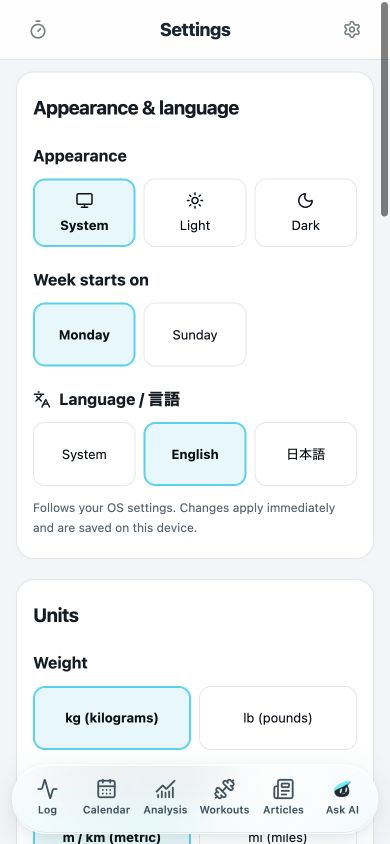
Choose Japanese or English, light, dark or system appearance, and Monday or Sunday as the calendar’s first day of the week. Changes apply immediately.
Choose kg or lb for weight and km or mi for running. HYROX distances and heights remain in metres.
MEN/WOMEN, OPEN/PRO or MIXED supplies defaults for new sets. Existing records do not change.
01 RECORD
Create a session, choose exercises and enter the work you completed. Inputs save automatically.
Open Record and tap New session. To record a previous day, select its date in Calendar first.
Choose from HYROX, running and strength, or quickly reuse Favourites and Recent exercises. Create and add your own custom strength exercises too.
Enter weight, reps, distance or time and mark completed sets. Add notes to a set, exercise or day.
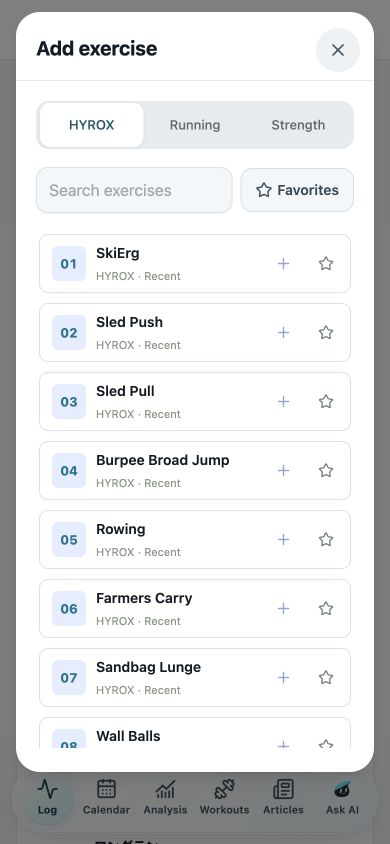
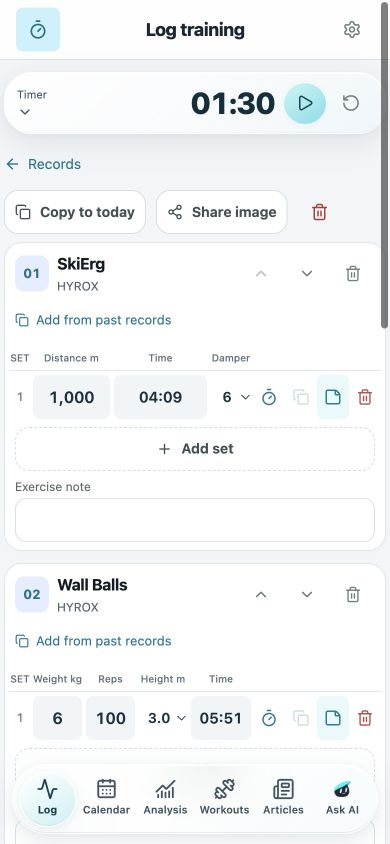
Return to the record list. Your input is saved automatically.
Show or hide the timer and stopwatch.
Create a share image from completed sets.
Move an exercise one position earlier or later.
Make this set the target for the stopwatch.
Copy values from the previous set. At exercise level, add values from a past record.
Open or close the note field for that set.
Delete a set, exercise or session after confirmation.
02 TIMER
The timer and stopwatch stay inside the recording screen so you can keep your place during training.
Set a rest interval and start. With notifications allowed, the app can alert you when the countdown finishes.
Choose a target set and apply the stopped time directly. You can still edit the value manually.
Use the clock icon at the top of a training screen to show or hide the timer.
03 REVIEW
Training days are colour-coded in Calendar. Analysis uses the right metrics for HYROX, running and strength.
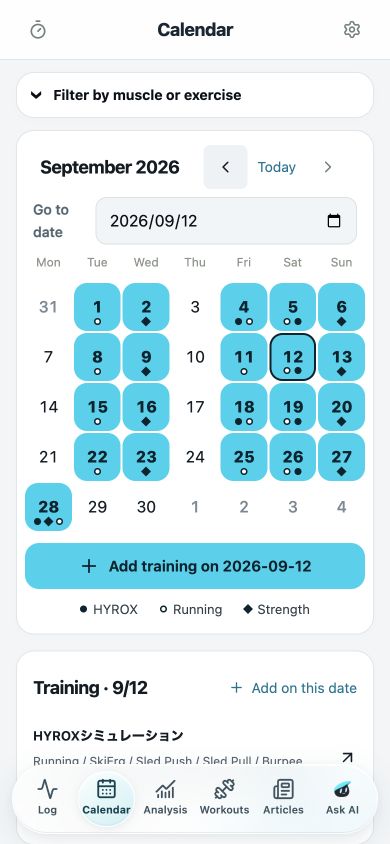
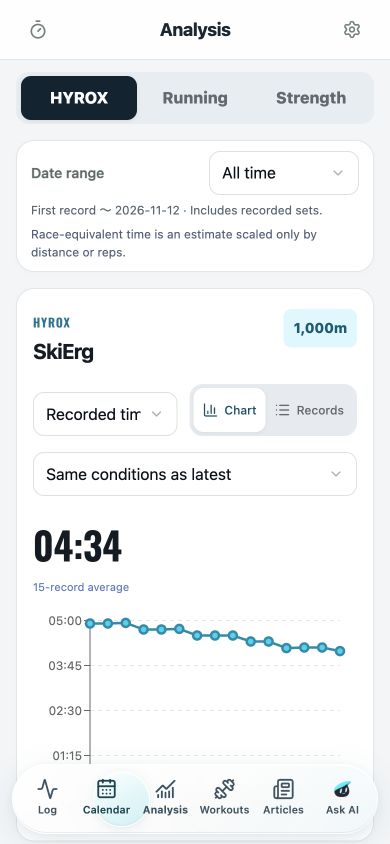
Review each month, filter by HYROX station, running or muscle group, and open records from a selected day.
Compare actual and race-equivalent times by matching load conditions, as a graph or record list.
Review average pace, total distance and time, run count and days. Filter standalone runs, HYROX runs and Run number.
Track estimated 1RM, total volume, sets and maximum weight, with exercise trends and record history.
04 WORKOUTS
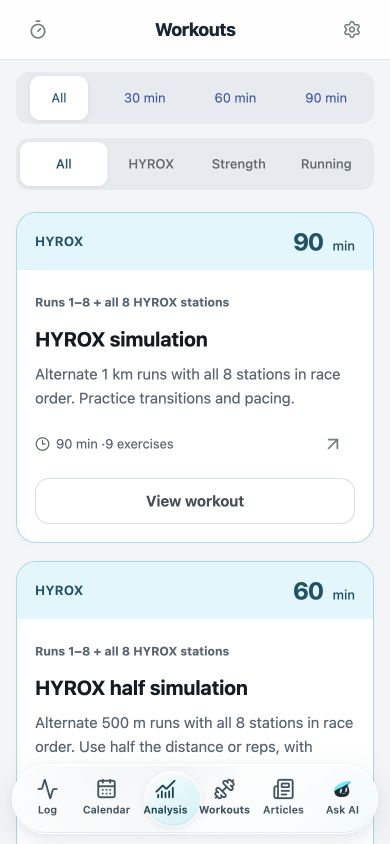
Find HYROX, running, strength and accessory sessions by available time and purpose.
Choose 30, 60 or 90 minutes to match the time available that day.
See warm-up, main work, cooldown, exercise order, sets, distance and duration before starting.
Add the workout to Record in sequence, then adjust loads and distances to suit your session.

05 ASK AI
Ask the PULS AI training partner about programming, technique, food or recovery by text or voice.
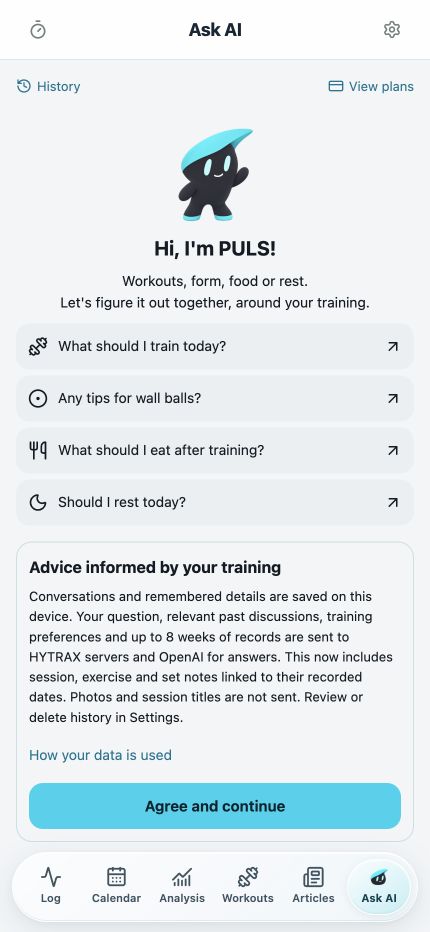
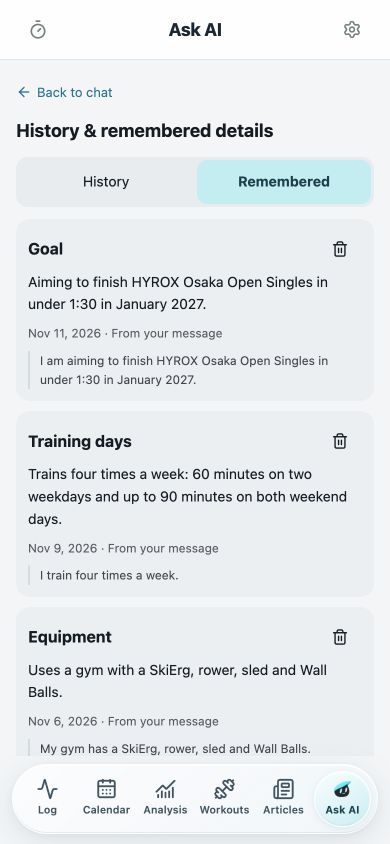
After consent, PULS can use up to eight weeks of exercises, loads, reps, distances, times and notes. Photos and session titles are not sent.
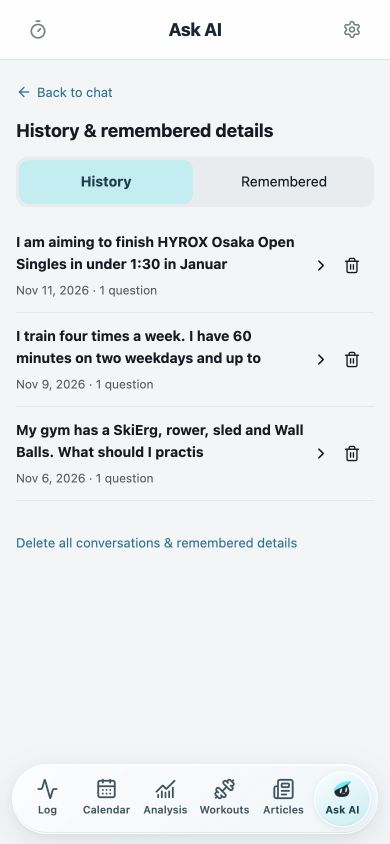
Open an earlier conversation and continue it. Delete conversations you no longer want to keep.
Goals, training days and available equipment can inform future replies. Review or delete these details yourself.
Use the microphone in the composer, then review and edit the transcription before sending.
06 SHARE
Create a vertical social image from completed sets, then save it or open the system share sheet.
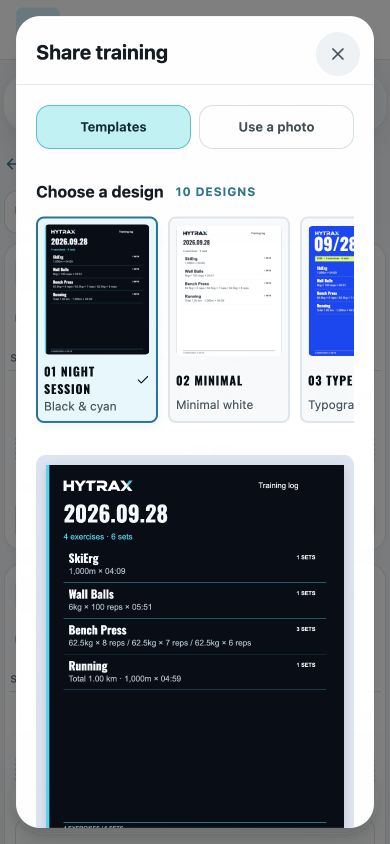
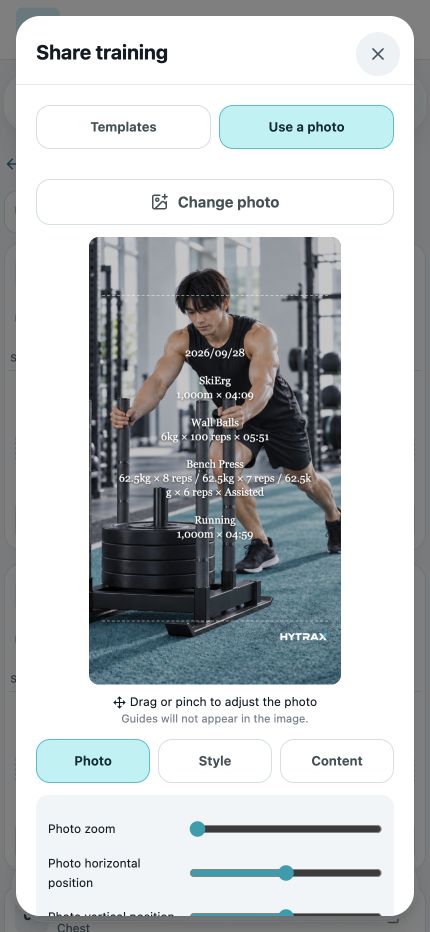
Choose black, minimal, typography, sunset and more. Select the records to display and export a PNG.
Choose a camera-roll photo and adjust photo position, brightness, text size, placement and content.
Save to the device or send to the OS share sheet. HYTRAX never posts automatically.
07 ROXNOW
Browse public information from ROXNOW, a media service focused on HYROX.
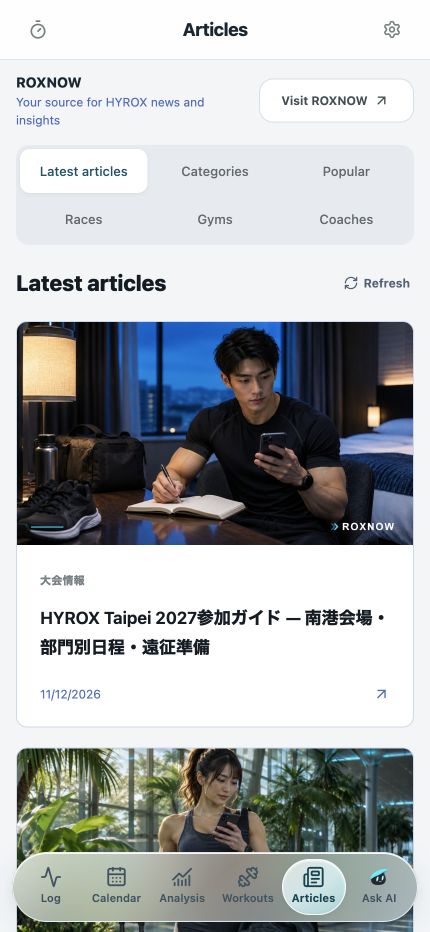
Browse latest, category and ranking views, then open a full article on ROXNOW.
Filter by event or venue, region and timing. Confirm the official event page before registering.
Search published gyms and coaches by name or area.
08 DATA & SETTINGS
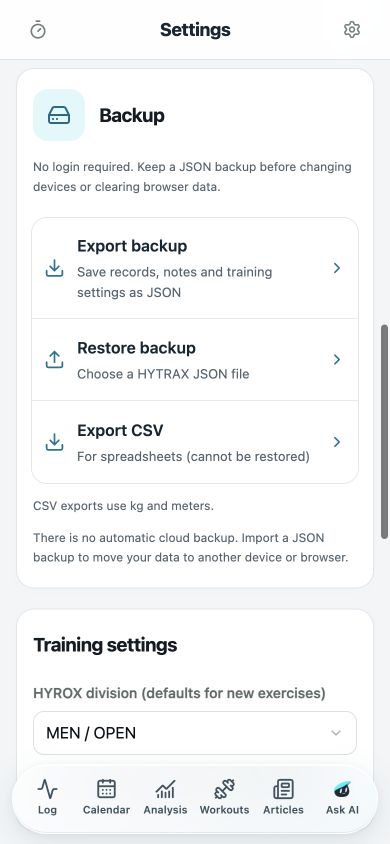
Settings includes appearance, units and division plus backup, CSV export, custom exercises and deleted records.
Export records, notes and settings, then restore from the same file. Use it when moving between iPhone and Android.
Export records for a spreadsheet. A CSV cannot be restored into the app.
Create a strength exercise with your own name, muscle group and recording mode. Edit or hide it later.
Deleted sessions remain restorable for 30 days. Delete all data removes records and settings from the device.
FAQ
No. HYTRAX is available only as an iOS and Android app. A web version is not offered.
No. Export a JSON backup from Settings and restore it on another device.
No. Check official event information for current rules, loads and requirements.

HYTRAX is available for iPhone and Android.